

Leaderboard
-
Drew Dowdell
Editor-in-Chief21Points56,342Posts -

balthazar
In Hibernation16Points40,855Posts -

Robert Hall
Premium Subscriber14Points32,446Posts -
A Horse With No Name
Members7Points23,469Posts


Popular Content
Showing content with the highest reputation on 08/14/2019 in Posts
-
*steers the topic away from guns*5 points
-
Prepare for the worst and if it doesn't happen you were at least afloat and have "extra" cash.4 points
-
4 pointsMy new wheel barrel is on point with the blackout trim and wheel package fad seen on current utility vehicles...
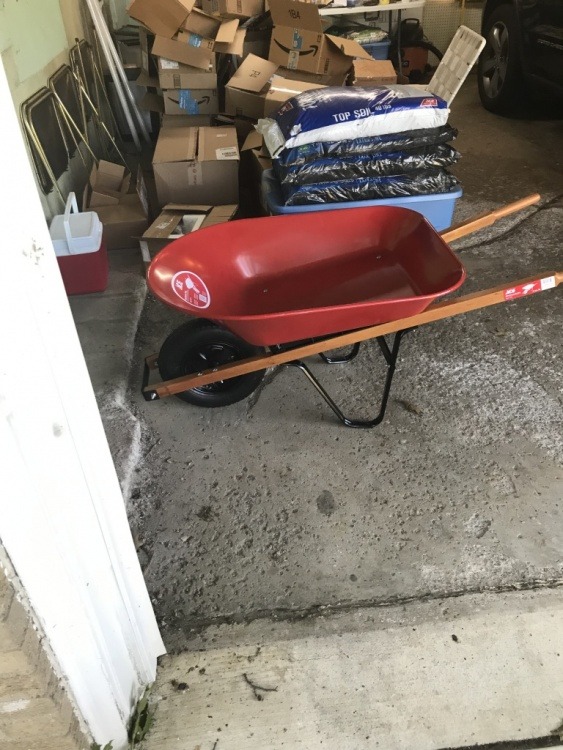 4 points
 -
3 pointsWe've been trying to pay down our place pretty aggressively, but not easy when it has needed so much work (original cast iron main plumbing stack, pathetic galvanized original water supply line, knob and tube, some asbestos, covering dirt floor in crawl space so rats can not burrow in, 30 year old boiler died, original hardwood almost worn through, never mind more cosmetic stuff I've worked on) and we bought an investment property along the way.. Hoping we can have it done in 15 years max at which point I'm aiming to be ready to retire or do contracts once in a while.3 points
-
3 pointsI cut my 30-yr (actually 22-yr; a bi-weekly) to 11 years. Havent had a mortgage payment since 2004.3 points
-
3 points
-
There's also the glut of used cars on the market at the moment. GM could bring the Cruze back in an instant. It's still in production in South America. Just load them on a boat and ship them north. Sonic and Spark are still in production for now. Sonic is not officially on the death list yet and its plant is not listed in the list of 5 plants that GM is closing.3 points
-
Yeah, the older ZJ (93-98) and WJ (99-04) GCs had solid front axles. They went to IRS with the WK ('05-10). I've had both a WJ ('00) and now a WK2 ('14) and love them..... Wranglers are fun off road toys, wouldn't mind having one for the weekends, but no bueno as a daily driver, IMO. Though I have a few friends that daily Wrangler Unlimiteds and love them. I prefer the GC's refinement and creature comforts.3 points
-
3 pointsIf you're at all inclined, this may also be a great time to refinance your house.3 points
-
The slow down is coming. If China wants to get in an all out trade war and flood the market with some of the US treasury bonds they owe that can really throw gas on the fire.3 points
-
3 points
-
No. Just no. “Convertible SUV” is an automotive oxymoron.2 points
-
No, just an idiot. They were seized when he was arrested last year, but he may get them back after probation ends next year..but that's neither here nor there. Anyway, the automakers shift to CUVs and SUVs seems short sighted if a downturn is coming...smaller, cheaper cars seem more likely to sell in a down market...2 points
-
Apparently Singapore officially entered recession yesterday. Germany technically did also, but at such a low rate, they're not calling it yet.2 points
-
2 points
-
2 pointsThe interest yield on the 10-year treasury note fell below the interest rate on the 2-year treasury note. This is called a yield inversion and when it happens it is a strong signal of a coming recession. The last time it happened was summer 2007. If you want to read more into it, there is a better explanation here: https://finance.yahoo.com/news/explainer-countdown-recession-inverted-yield-134605584.html2 points
-
2 points
-
2 points
-
2 points
-
2 points2 points2 points2 pointsConvertibles have had a hard time selling in the USA for the better part of a decade. One more will not move the sales needle anytime soon.1 pointEnough of the gun talk. I'll delete further posts of it. Spike is a relative term because the entire industry was in a massive contraction at the time. Smaller cars did well relative to bigger ones yes, but part of that was cash for clunkers.1 pointI predict 1,000,000 sales year 1, because Crossover Convertible!1 pointAs one that has lived in the sun but after skin cancer and a rebuild of my nose, now uses hats heavily and prefers to stay out of the sun. Pass on this convertible.1 point1 pointPoint of clarification: early mortgage payments on a 30-yr are typically 100% interest for the first year and a half or thereabouts. You pay it down faster the later in the schedule you are. Get an amortization schedule from your lender. That said I agree with the above - pay down debt whenever you are able.1 pointI expect consolidation around the globe for all the auto makers as the recession takes hold.1 point1 point1 pointAs somebody told me, if you in the beginning of the mortgage payment period, it is easier to make extra payments to pay it off faster when you can, than take a 15 year mortgage for a few extra points of percentage and to have much higher monthly payment. If something changes in your life, much easier to go back to a lower payment on 30 year mortgage.1 pointNeat...kind of a budget Evoque cabriolet. Not sure how big the market for a crossover cabrio is... but, I like seeing offbeat stuff like this.1 point1 pointAlmost completed my refinancing. The percentage might drop even more but I had to do it now.1 pointI know several people with several hundred, and a few people with over a thousand.1 point1 pointThose numbers don't seem right. Theres an estimated 400 million guns in the US. 4% of US population is 14,000,000, obviously a lot less once you eliminate minors.1 pointMy idiot brother had 45...1 point1 pointDoes this picture signal the investment potential in Amazon? Watch Mad Money! He has for the last few weeks been talking about the impending recession / correction. He does talk about some real bargains and the potential consolidation in the auto industry.1 point1 point1 point1 pointSummer 2007... Not the greatest sign of things to come. Get ready to invest when things bottom out!1 point1 point1 pointHold on to your butts.... big signal that the recession is starting happened today.1 pointNot sure which gen GC your son has but the current generation of the GC is leaps and bounds better than the older ones (especially the late 90s/early 00s models). The Wrangler just has never been my thing. I’ve driven three different generations and they all have one thing in common. They are absolute back breakers everywhere short of the smoothest asphalt.1 point1 pointI like all of the railroad stuff you've been posting lately @balthazar1 point1 point1 point1 pointI love how automakers solution to people moving from sedans to SUVs is to make sedans with sweeping roof lines and small trunks so you get less cargo space and less headroom, thus motivating people even more to look at an SUV rather than a sedan. This will be another turbo 4, front drive sedan, boring.1 pointExpensive packages for a 25th anniversary edition.1 pointThis leaderboard is set to New York/GMT-04:00


Important Information
We have placed cookies on your device to help make this website better. You can adjust your cookie settings, otherwise we'll assume you're okay to continue.
Account
Navigation
Search
Configure browser push notifications
Chrome (Android)
- Tap the lock icon next to the address bar.
- Tap Permissions → Notifications.
- Adjust your preference.
Chrome (Desktop)
- Click the padlock icon in the address bar.
- Select Site settings.
- Find Notifications and adjust your preference.
Safari (iOS 16.4+)
- Ensure the site is installed via Add to Home Screen.
- Open Settings App → Notifications.
- Find your app name and adjust your preference.
Safari (macOS)
- Go to Safari → Preferences.
- Click the Websites tab.
- Select Notifications in the sidebar.
- Find this website and adjust your preference.
Edge (Android)
- Tap the lock icon next to the address bar.
- Tap Permissions.
- Find Notifications and adjust your preference.
Edge (Desktop)
- Click the padlock icon in the address bar.
- Click Permissions for this site.
- Find Notifications and adjust your preference.
Firefox (Android)
- Go to Settings → Site permissions.
- Tap Notifications.
- Find this site in the list and adjust your preference.
Firefox (Desktop)
- Open Firefox Settings.
- Search for Notifications.
- Find this site in the list and adjust your preference.