

Leaderboard
-
G. David Felt
Premium Subscriber1Points38,400Posts -
Drew Dowdell
Editor-in-Chief1Points56,349Posts -
.jpg.5f16a897d58efcfbd17037eca2b20a5b.jpg)
oldshurst442
Members1Points10,227Posts


.jpg.5f16a897d58efcfbd17037eca2b20a5b.jpg)

Popular Content
Showing content with the highest reputation on 01/18/2026 in Posts
-
1 pointYes, that is true that Windows upgrade uses the space to make all the changes, but it should release it fairly soon. You can go in and do some house cleaning: Free Up Space on the Current Drive Open File Explorer, right-click the 😄 drive, and select Properties. Click Disk Cleanup and select files to delete, such as temporary files and old system updates. Click OK to proceed. Open Command Prompt as an administrator and run powercfg.exe -h off to disable hibernation and free up space. Move large files or folders (e.g., Documents, Downloads, Pictures) to another drive: Right-click the folder, select Properties, go to the Location tab, and click Move. Uninstall unnecessary apps via Settings > Apps > Installed apps. Also check out this as this covers what most other articles also state about cleaning up and freeing up space after a Win11 upgrade. How to reclaim space after upgrading Windows 11 to newer version1 point
-
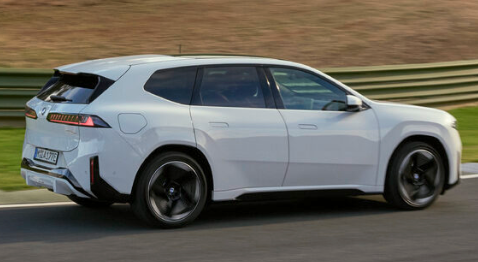
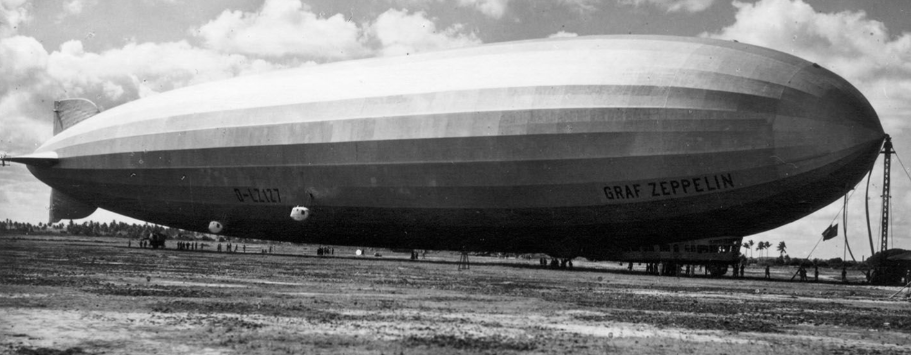
Nothing negative to say about it, other than its a SUV...and nothing negative about the body creases that go from the front to the back, but they do remind me of the creases on the Graf Zeppelin. And I kinda like them on the BMW. But I really really hate the fact that it is a SUV. *sigh* About the front and BMW's new design language. I like it. @Drew Dowdell said that its kinda new round of retro 2.0 styling. And I would agree. At least the 'twin kidneys' are toned down a lot from the monstrosities they were putting out. The one complaint I got is I would prefer if the headlights and 'grille' were more centered on the face. More 'down' on the front eliminating all that nothingness that is 3/4s of the front and the top 1/4 are the lights and twin kidneys.
 1 point
 -
I feel like they've finally fixed their design language with this, though its almost a new round of neo-retro like we had in the early 2000s with the PT Cruiser, Neu Beetle, HHR, etc.1 point
This leaderboard is set to New York/GMT-04:00